Showing posts with label Windows. Show all posts

Wednesday, October 25, 2017

Keepass 2.3.7 Using Dropbox API Version 2.0 (Windows 7 Pro 64 Bit)

A few day ago, suddenly my keepass can't access "my_keepass.kdbx" on dropbox, even if i created new credential wizard through menu "tool --> url credential wizard", i'm still unable to access it.

As we know ( even if you are late to know) Dropbox API Version 1 has been deprecated on 28th September 2017, some application which depending on Dropbox API Version 1 will produce error, and this change has effect on keecloud too.

After sometime googling and read forum on KeeCloud's forum, i found the solution, and yes, it is simple.


  1. First, i'm using Keepass 2.3.7 (Portable Version) on Windows 7 Professional 64 Bit, to fix this issue, you may update your Keepass if you want it. But the most important step is you must revoke keecloud from your dropbox, because new KeeCloud doesn't need username, it just need the credential number from dropbox, do this step inside your dropbox setting. (Personal Setting --> conneccted application --> keecloud), clikc the [X] to remove keecloud from connected application area.
KeeCloud.plgx File 4 MB KeeCloud.zip Zip archive 3 MB

  1. Open your Keepass folder, go to "D:\PortableApps\PortableApps\KeePass\plugins\", remember, i'm using portable version, if you install it, the position will be very different, but even if you are using the same portable version, folder location maybe different too.

  1. Move KeeCloud.plgx to "D:\PortableApps\PortableApps\KeePass\plugins" and replace old file.

  1. Extract KeeCloud.zip until you get KeeCloud folder and move all KeeCloud\* to "D:\PortableApps\PortableApps\KeePass\plugins\dlls\" and replace all old file inside it.

  1. Then open keepass and go to tools --> Url Credential Wizard and follow the instruction on the screen, this step will open Dropbox through default browser on your computer.


  1. Sign in to your dropbox and allow KeeCloud to access your dropbox file.


  1.  After this step, you will get credential code (accessess code).


  1. Copy it and paste into opened windows from credential configuration.


  1. Click Next, you will get passcode for KeeCloud to access Dropbox, copy it to notepad and delete it after finish (don't save it). Open your existing file_keepass.kdbx, using, open URL menu from Keepass.


  1. Insert URL with dropbox://keepass_database_folder/keepass_file.kdbx, and insert passcode from step 10 and click OK


for some reason, if you are still can't connect to your kdbx file at dropbox, you can fill username with email which you are using login to dropbox.


  1. Type your keepass_file.kdbx master password and click OK


  1. Done.


For another Keepass setup in this website, please see this link

Tuesday, December 03, 2013

Integrating KeePass 2 with Android 4.2.x

Requirement :

1. KeePass Version 2.x or Higher, get it from here
2. Download KeePass2Android Password Safe from here

Instalation :

1. Just click install on it.
2. Now open KeePass2Android program, and choose "Open file..."


3.  Choose Dropbox and locate it to your_database.kdbx.


4. Giving access to your dropbox


5. Type your masterkey password


6. Done


7. Done


Integrating KeePass with :

1. DropBox
2. Firefox
3. Chrome

Integrating KeePass 2 with Firefox (Windows 7 Pro 64 Bit)

Requirement :

1. KeePass Version 2.x or Higher, get it from here
2. Download KeeFox from here

Instalation

1. Close your KeePass Version 2.x (this is important - don't ignore it)

2. Run KeeFox instalation by clicking on add to firefox button, and follow instruction.


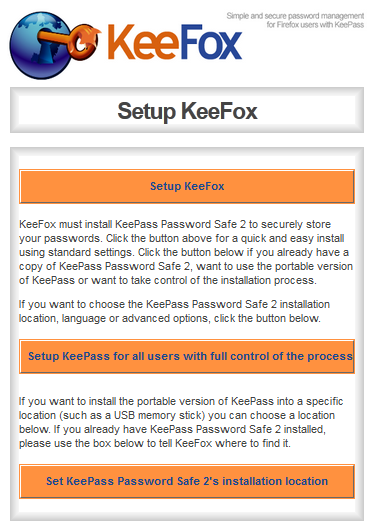
 3. After instalation KeeFox will automatically open setup form.


4. Clik on "More information and advanced setup options" button, i choose this because i'm already have KeePass Safe (portable Version).


5. Click "Set KeePass Password Safe 2's installation location" to locate your keepass instalation directory. KeeFox will try to run your KeePass Safe aplication and open it database, allow it.


6. Enter your master password to open KeePass database.


7. You should see something like picture bellow, it mean your setup is success.

8. Now it is time to test our instalation, go to what ever website with login page, in this case, i choose yahoo mail, and if the login form automatically fill up, it mean your instalation worked.

9. Done


Integrating KeePass with :

1. DropBox
2. Chrome
3. Android

Integrating KeePass 2 with Chrome (Windows 7 Pro 64 Bit)

This how to copied from KeePassHttp website, i just adding some picture and text.

Requirement :

1. KeePass Version 2.x or Higher, get it from here
2. KeePassHttp, you can download from here


Installation :

1. Install KeePass, see instruction here
2. Install KeePassHttp by dropping KeePassHttp.plgx into the KeePass Program Files directory
3. Log into KeePass
4. Verify KeePassHttp has been installed correctly by checking Tools > Plugins
5. Your database in KeePass has to be unlocked.
6. Go to the Chrome Web Store and install the extension chromeIPass.

7. Now there is a new browser icon available


8. Click on the icon and press the button to connect to KeePassHttp:


9. KeePassHttp shows you an dialog to give the pairing request a name. You could call it "Chrome on my main computer".


10. If you click on the browser icon again it should show you the following information:


11.Navigate to any page containing a password, it should be there is pop up asking you to confirm access, Allow it.


12. Your passwords are now securely retrieved from KeePass and automatically entered into password forms and fields when needed.

13. Done


Integrating KeePass with :

1. DropBox
2. Firefox
3. Android

Source : KeePassHttp

Using Keepass 2 With Dropbox (Direct save to DropBox NOT syncing it with DropBox)

SOME INSTRUCTION HERE ARE OBSOLETE, PLEASE SEE THIS LINK FOR UPDATED INSTRUCTION

What is KeePass?
Today you need to remember many passwords. You need a password for the Windows network logon, your e-mail account, your website's FTP password, online passwords (like website member account), etc. etc. etc. The list is endless. Also, you should use different passwords for each account. Because if you use only one password everywhere and someone gets this password you have a problem... A serious problem. The thief would have access to your e-mail account, website, etc. Unimaginable.

KeePass is a free open source password manager, which helps you to manage your passwords in a secure way. You can put all your passwords in one database, which is locked with one master key or a key file. So you only have to remember one single master password or select the key file to unlock the whole database. The databases are encrypted using the best and most secure encryption algorithms currently known (AES and Twofish). For more information, see the keepass.info

Using Keepass 2 With Dropbox (Direct save to DropBox NOT syncing it with DropBox)

1. Download and install KeePass ( i'm using keepass portable version)


2. Download KeeCloud Plugin from https://bitbucket.org/devinmartin/keecloud/downloads
3. Copy KeeCloud.plgx and put inside KeePass directory, we don't use dll file, because that files for developers.


4. Open KeePass --> Tools --> Plugins, you should see KeeCloud plugin on there.


5. Create your database and set your master password, you would need master password to open database file.


7. Tools --> Credential Wizard, and choose Dropbox, and follow instruction and allow KeeCloud to accesses your Dropbox.

8. Save credential data to your database by click save as Entry button


8. Now copy username and password to notepad (for temporary) don't forget to delete it !!!
9. Upload your database.kdbx to your dropbox, in my case it named tmp.kdbx
10. File --> Open --> Open URL, and type your credential username and password.


11. If everything okay, you will see all your password inside KeePass safe.


Integrating KeePass with :

1. Chrome

Tuesday, December 18, 2012

PDFArchitect

PDFArchitect is a tool to easily modify your PDF files - i.e. you can merge two files, delete pages or rotate them.


PDFCreator

PDFCreator allows you to easily create PDF files from any Windows program. Use it like a printer in Word, StarCalc or any other Windows application.


Images2PDF


Images2PDF is the easy and fast way to convert images to pdf files. You can import different image file types, set different output formats und export all as a pdf file.


DraftSight

DraftSight is a proprietary freeware 2D CAD (computer-aided design or computer-aided drafting) product for engineers, architects, designers, draftspeople, students and educators. The product was developed by Dassault Systèmes and lets users create, edit and view DWG and DXF files.

DraftSight competes against more than three dozen 2D or 2D/3D hybrid products on the market. General availability of DraftSight for Windows was released in February 2011 and was downloaded more than 1.8 million times as of December 2011.

Screenshot


LibreCAD

What is LibreCAD

LibreCAD is a free Open Source CAD application for Windows, Apple and Linux. Support and documentation is free from our large, dedicated community of users, contributors and developers. You, too, can also get involved!

Quick Links:

Wiki : http://wiki.librecad.org
Video Tutorials: http://www.youtube.com/results?search_query=librecad(Big thanks to the tutorial authors)

LibreCAD is a fully comprehensive 2D CAD application that you can download and install for free. There is a large base of satisfied LibreCAD users worldwide, and it is available in more than 20 languages and for all major operating systems, including Microsoft Windows, Mac OS X and Linux (Debian, Ubuntu, Fedora, Mandriva, Suse ...).
You can download, install and distribute LibreCAD freely, with no fear of copyright infringement.

LibreCAD's features

LibreCAD is a feature-packed and mature 2D-CAD application with some really great advantages:
  • It's free – no worry about license costs or annual fees.
  • No language barriers – it's available in a large number of languages, with more being added continually.
  • GPLv2 public license – you can use it, customize it, hack it and copy it with free user support and developer support from our active worldwide community and our experienced developer team.
  • LibreCAD is an Open Source community-driven project: development is open to new talent and new ideas, and our software is tested and used daily by a large and devoted user community; you, too, can get involved and influence its future development.
Screenshot


Monday, November 26, 2012

Playing MKV Files On Windows Media Player 12 On Windows 7 64 Bit

You will need to install all this application.
1. Install the latest stable version from ffdshow tryout, because some aplication still running on 32 Bit, so i download all ffdshow version :
3. Install Win7DSFilterTweaker

Configuring
1. Running Win7DSFilterTweaker


Here's my setting for Preferred Decoders, checked all ffdshow checkbox (uncheck all Microsoft checkbox).


For Microsoft Codec Tweaks, i disabled all Microsoft Audio and Video Decoder, both 32 Bit and 64 Bit


And for the last setting, i did nothing to it :D


Done